The game will not finish loading
The website and the game load separately. On the Play page, choose Let’s Ride to start downloading the game. A first visit can take longer on a mobile connection. Keep the tab open while the download is progressing.
- If the progress percentage is still increasing, let it continue. Repeatedly reloading restarts the attempt.
- If the loader says the download is complete but the browser is still starting the game, give it a little more time. This stage is different from downloading.
- If it stops progressing or shows an error, check your connection and choose Try Again. Trying a stable Wi-Fi connection can help distinguish a connection issue from a device issue.
- Use Open game on its own to try the same game outside the embedded player. You do not need a separate login.
- If the browser says it cannot open the game, check that it is up to date, JavaScript is enabled and graphics acceleration is available. On a managed computer, these settings may be controlled by its administrator.
The “Your ride is taking longer” message does not cancel a download. You can keep waiting or retry. If neither works, send us the exact message and whether it stopped during downloading or starting.
There is no music or sound
Start the game with a tap or click, then open Settings from the game menu. The main sound button reads Muted when all game audio is off. Activate it to turn sound back on.
- Check Music and Effects separately. Turning music off does not have to turn off warnings and other game sounds.
- Voices controls the rider’s optional lines. Voices also need Effects and the main sound setting to be on.
- Check the device’s media volume, browser-tab mute setting and the selected speaker or headphones. On an iPhone, check Silent mode too.
- If you changed apps or locked the phone, return to the game and interact with it again. If sound does not return, finish your ride and reload.
On a keyboard, M toggles the main sound setting. Sound preferences are saved locally, so an earlier mute choice can still be active when you come back.
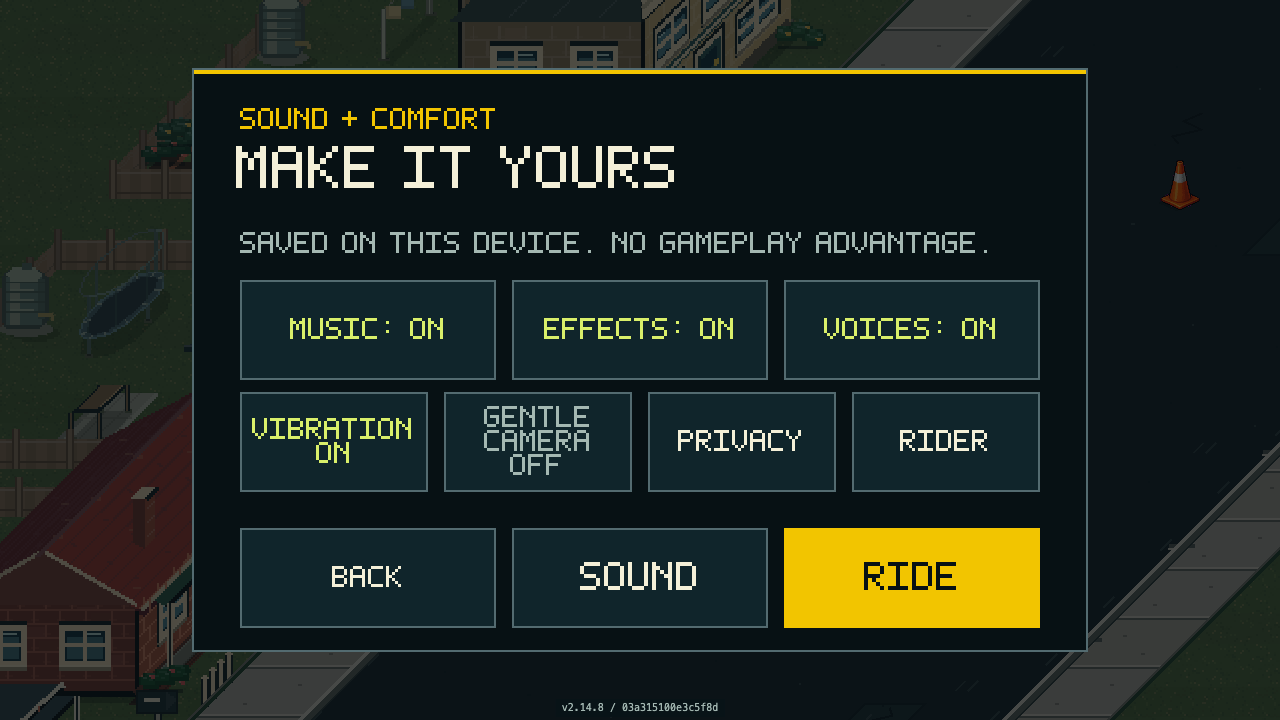
These are the in-game Settings controls with sound enabled. Start with the main Sound switch, then check Music, Effects and Voices separately.
View screenshotThe phone view or touch controls feel wrong
Play with the phone sideways. Launching on a touch device opens the game in a full-window view. Some browsers retain their own address bar or other controls; the game cannot always hide those.
In the browser game, place your thumb anywhere in the safe left-hand control area, then push and hold left or right to keep steering. You do not have to reach for one fixed bottom corner. Keep your thumb to the side for continued movement; centre it or lift to stop steering and touch down again to reset your grip. Push up to boost and down to brake. Duck, Hop and the wheelie button sit on the right. The Android app still uses its own floating-joystick tuning.
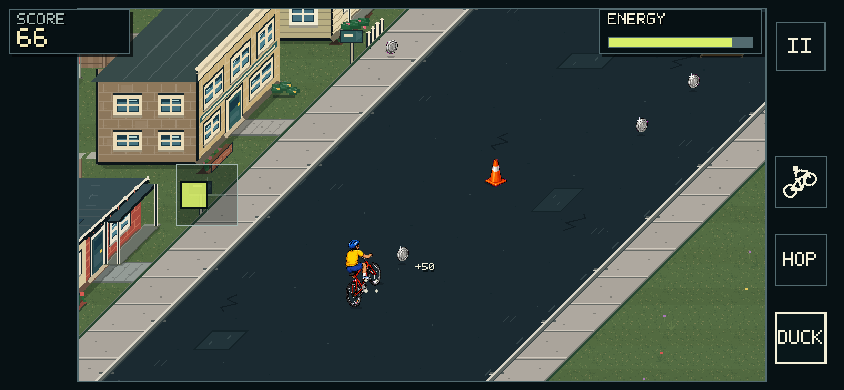
Start your left thumb wherever comfortable in its control area. Hold left or right to steer in the browser, and use the right-hand buttons for Wheelie, Hop and Duck.
View screenshot- Pause before rotating the phone or adjusting your grip.
- If the phone stays upright, check its rotation lock, turn it sideways and reopen the game.
- If a control is clipped after rotation, reload once in landscape and try again.
- To leave the full-window player, tap the game’s Pause button first, then the × control to return to the website.
If your thumbs still hide an approaching hazard, tell us the phone model and send a landscape screenshot. A report that shows the complete player area helps us distinguish the game layout from space used by the browser.
The ride is slow or uneven
Slow loading and slow riding are different problems. If the download has finished but movement stays choppy, note whether it happens everywhere or only in a busy section such as Bin Day or traffic.
- Close other demanding tabs or applications and try a fresh game tab.
- Check that the browser is using graphics acceleration if your device supports it.
- If the device is hot or running in a power-saving mode, let it cool and compare another short ride.
- If possible, compare the embedded player with the standalone game on the same device.
There is no promise that every older device will run identically. Useful reports name the device, browser and the encounter involved, rather than just saying the game was laggy. We can then test the right part of the game.
Where are my records and achievements?
Your best score, furthest ride, progress and settings belong to this browser’s local storage. Magpie Panic does not use an account or provide a cross-device cloud save. Another browser, browser profile or device can therefore start with different records.
Clearing site data can remove that progress. If storage is blocked or unavailable, progress may last only for the current session. Before changing storage settings or using a private session, bear in mind that there is no account-based restore to fall back on.
Practice is for learning and does not replace your scored-ride records. Your best score and furthest distance are separate records: a stunt-heavy run can beat your score without becoming your longest ride. The chalk marker belongs to the furthest-distance record, not whichever ride earned the most points.
For more detail, see the privacy page. Support cannot recover a local save that has been deleted.
Controls, comfort and getting started
On desktop, click inside the game if the keyboard is not responding. P or Esc pauses a ride. The How to Play guide explains the full controls and the difference between hopping, ducking and ramp tricks.
Open Settings to separate music, effects and rider voices. Gentle Camera reduces camera effects; it does not remove the need to react to hazards. Wheelies and tricks are optional, so start with steering, ducking and energy before adding stunts.
For an unfamiliar warning or obstacle, use the encounters guide. Knowing what a section is asking you to do is more useful than trying every action at once.
Still stuck? Contact Mindset Cyber
Email info@mindsetcyber.com.au with “Magpie Panic support” in the subject. Bug reports, confusing controls and gameplay feedback all belong here.
Please include:
- Your device model, operating system and browser name.
- Whether you were playing on the website, in the Android app or in an iOS test build.
- What you did just before the problem, what you expected and what actually happened.
- The exact error, or the version and build shown on the game screen if visible.
- Whether it happens every time. For loading problems, mention Wi-Fi or mobile data.
A short screenshot or recording can help, but crop out unrelated tabs, notifications and personal information. Do not send passwords, API keys, payment information or other sensitive data. We only need enough detail to reproduce the game problem.